![S_Icon_03.png]](https://support.swimmingly.app/hs-fs/hubfs/S_Icon_03.png?height=50&name=S_Icon_03.png)
Before You Start
To use a custom domain, you must be on the Plus Websites tier.
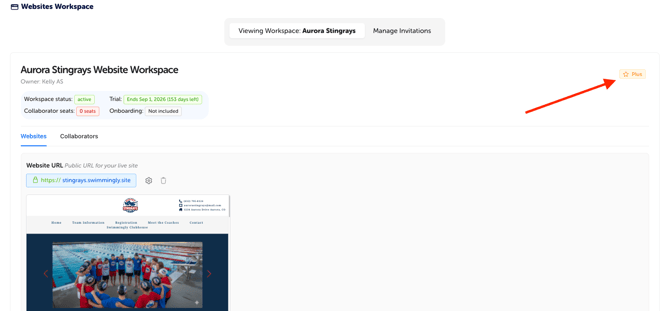
If you’re not on Plus yet, you’ll need to upgrade before this option becomes available. Please reach out to team@swimmingly.app if you need to upgrade before September 1st, 2026.
Step 1: Access Your Website Settings
- Log in to your Swimmingly Clubhouse account
- Navigate to the Websites tab
- Click Manage Existing Website
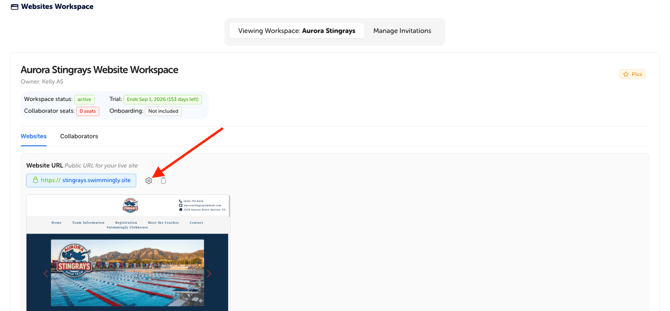
- Click the gear icon next to your current domain (also next to the trash can icon)
Step 2: Enter Your Custom Domain
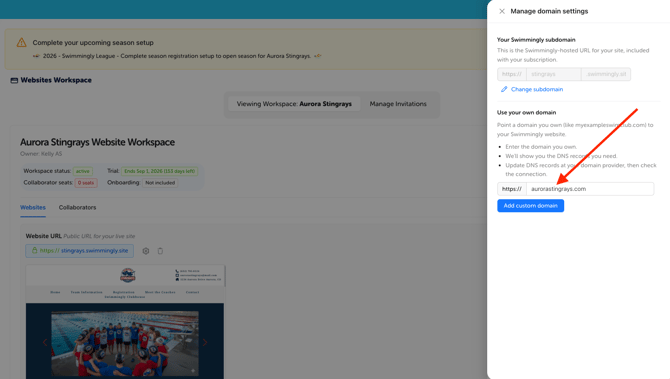
- You'll see the section to "Use Your Own Domain"
- Enter your custom domain (example: aurorastingrays.com)
- Press Add Custom Domain
Step 3: Update Your DNS Records
Click View DNS Records. You’ll now see a section labeled:“What you should enter at your domain provider”
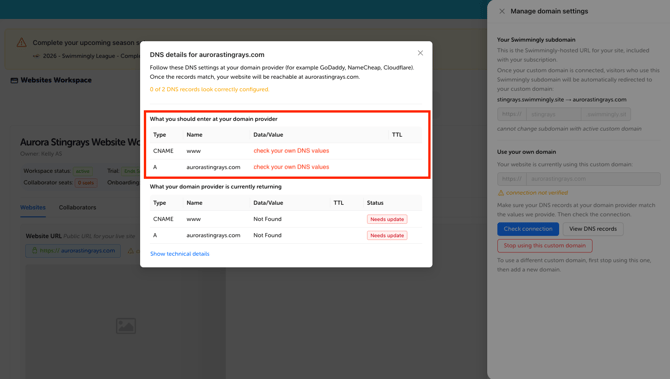
This is where you’ll find the specific values for your website. You'll take this information and copy the required values into your domain host (such as GoDaddy, Network Solutions, etc.).
You’ll need to add TWO records:
1. CNAME Record
- Type: CNAME
- Name/Host: www
- Value: (copy exactly what is shown in Swimmingly)
2. A Record
- Type: A
- Name/Host: @
- Value: (copy exactly what is shown in Swimmingly)
TTL (Time To Live)
- Set this to the lowest available option or 1 hour
Step 4: Save and Wait for Propagation
Once you’ve added both records:
- Save your changes in your domain provider and wait!
- Do not edit them again as making changes will restart the process and can delay your launch
Your site will begin processing immediately, but it takes time for these changes to fully propagate across the internet.
- If you already have a website on your domain, it will temporarily go down during propagation
- This is completely normal and expected
- Your new Swimmingly site will replace it once the process completes
Timing Expectations
- Most domains finish connecting and you'll see your new website on your custom domain in under 1 hour. This usually takes a minimum of 10 minutes.
- In some cases (especially if DNS records have been changed multiple times), it can take up to 24–72 hours.
There is NOTHING we (or you) can do to speed up this process.
How to Check Your Status
While your domain is connecting:
- Return to View DNS Records in Swimmingly
- Check the status indicators:
- Both the A Record and CNAME must say "Ready" and turn green
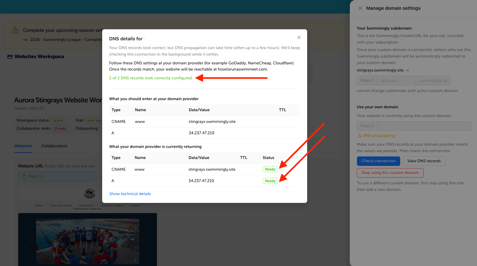
- You can also click Check Connection for a status update or click on the yellow "DNS propagating"
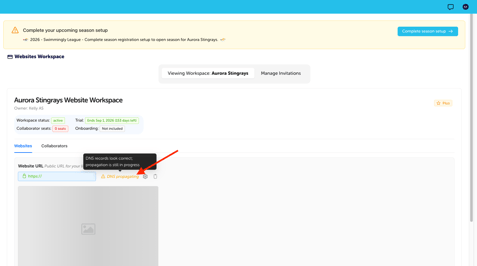
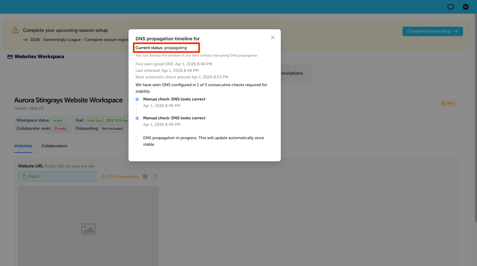
Note: Even when both are green, your website may still take a bit more time to fully load across the internet globally.
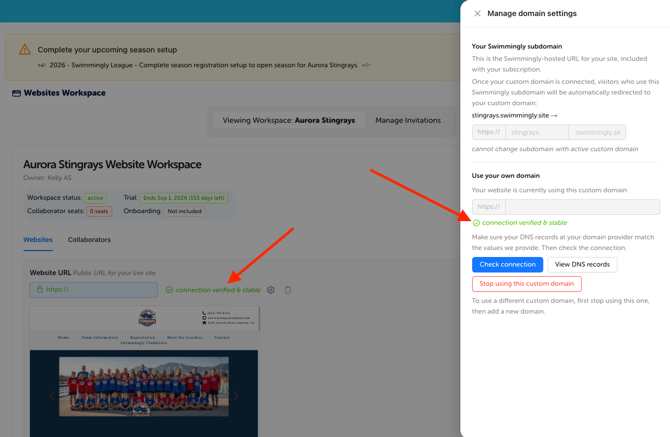
You'll be ready to go when it says "Connection Verified and Stable"
Best Practices
- Double-check your DNS entries for accuracy before saving
- Ideally these changes should only be made by the owner of the Domain Host account (ie: GoDaddy owner with the login username and password to manage DNS records)
- Do not make repeated changes as this will delay propagation
- Make updates during a low-traffic time (early mornings or late evenings)
Learn More
Want a deeper explanation of propagation? Check out the Help Center Article Below:
Understanding Propagation
Quick Recap
- Swimmingly Plus Websites Tier is required to be able to do this
- Add CNAME + A Record exactly as listed in your account
- Set TTL to low or 1 hour
- Do not modify records after saving
- Expect downtime during propagation