![S_Icon_03.png]](https://support.swimmingly.app/hs-fs/hubfs/S_Icon_03.png?height=50&name=S_Icon_03.png)
Step 1: Take the Swimmingly Academy Course
Before diving in, we strongly recommend starting with the Swimmingly Academy course for Websites.
This will walk you through:
- How the website builder works
- How to customize templates
- Best practices for setting up your site
You can find the course directly in the Websites tab inside the Clubhouse.
Check out this video to walk through the steps below:
Step 2: Navigate to the Websites Tab
Log into your Swimmingly Clubhouse and click on the Websites tab.
From here, you can:
- Preview available website templates (desktop and mobile views)
- Compare Starter vs Plus plans
- Access Help Center resources
Step 3: Get Started
Click the “Start Your 14-Day Free Trial” button to begin.
You’ll then:
- Choose whether you're creating a club or league website (you must be a league admin to create a league website)
- Select your plan (Starter or Plus)
- Select any add-ons (collaborators for Plus tier or one time websites onboarding)
- Checkout
Note: "Swimmingly Websites" offers a free 14 day trial.
Step 4: Set Up Your Website Workspace
After checkout, you’ll be prompted to:
- Create your website workspace
- Invite collaborators (if you paid for this in your Plus plan)
- Start building your site
Click “Start Now” to continue.
Step 5: Choose a Template
Select a template that fits your team or league.
Then enter your team name to set your subdomain (you can change this later)
Step 6: Open the Website Editor
Click “Open Website Editor” to begin customizing your site.
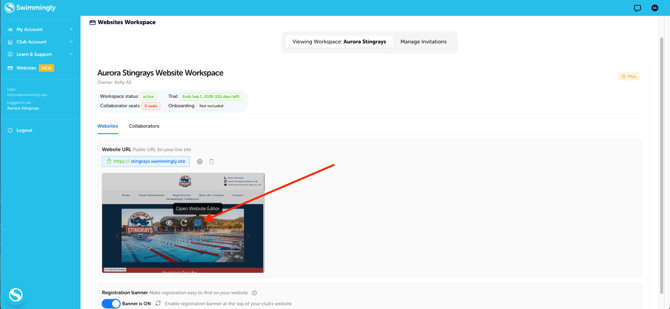
From here, you can:
- Edit text, images, and pages
- Update branding, theme, and colors
- Add important team information
Be sure to always click Update to save your changes. Check out our other help center articles to learn more about the Swimmingly Websites tool.
Step 7: Publish and Manage Your Site
Once your site is ready, you can:
- View your live website
- Update your subdomain or connect a custom domain (Plus tier only)
- Learn how to make your site searchable on Google
Bonus: Registration Banner
If your registration is open, a registration banner can automatically appear at the top of your site, making it easy for families to sign up.
Not a current Swimmingly user?
You can still use Swimmingly Websites.
Just reach out to team@swimmingly.app, and we’ll help get you set up.