![S_Icon_03.png]](https://support.swimmingly.app/hs-fs/hubfs/S_Icon_03.png?height=50&name=S_Icon_03.png)
You can update:
- Meet Name
- Meet Date
- Meet Start Time
- Meet Entry Limits
- Host Team
- Meet Location
You can also add or remove participating clubs using a slightly different process outlined below.
Edit General Meet Information
- Navigate to Clubhouse and open your Meet.
- Once inside the meet, locate the information you want to update.
- Hover over that particular section until the Edit (pencil) icon appears.
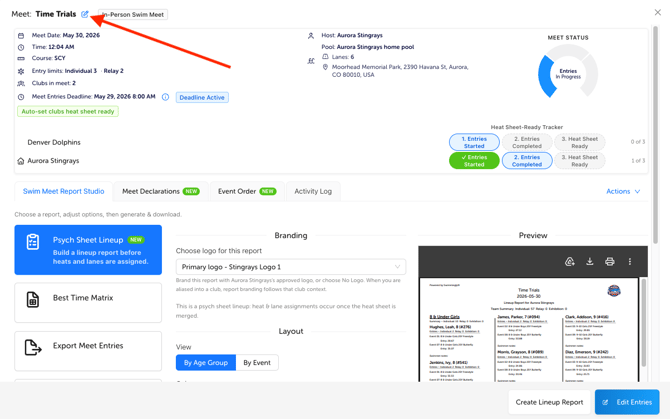
- Click the Edit icon.
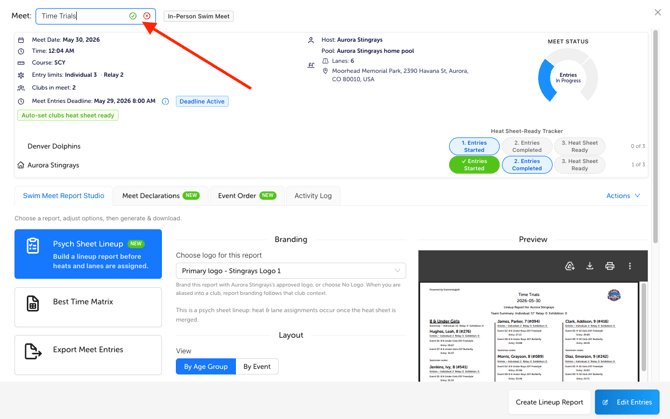
- Update the information as needed.
- Click:
- Green checkmark to save changes
- Red X to cancel without saving
Editable Fields
You can follow the same process to update:
- Meet Name
- Meet Date
- Meet Time
- Meet Entry Limits
- Host Team
- Meet Location
Sync to SwimminglyFan
Any updates made to meet information in Clubhouse will automatically sync to the SwimminglyFan app so swimmers and families always see the most up-to-date details.
Add or Remove Clubs from a Meet
Updating participating clubs uses a different workflow.
- Open the Meet in Clubhouse.
- Click the Actions button on the right side of the page.
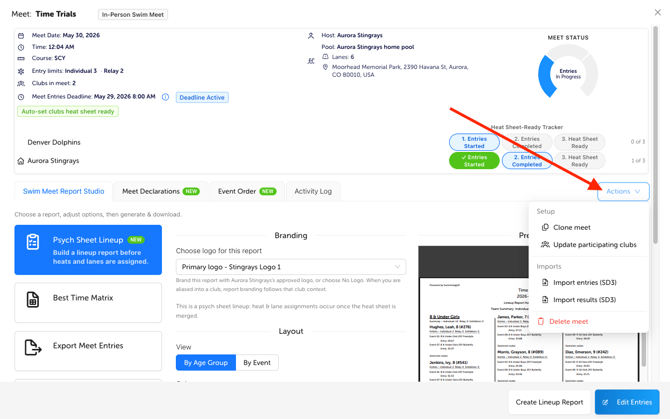
- Select Update Participating Clubs.
- Add or remove clubs as needed.
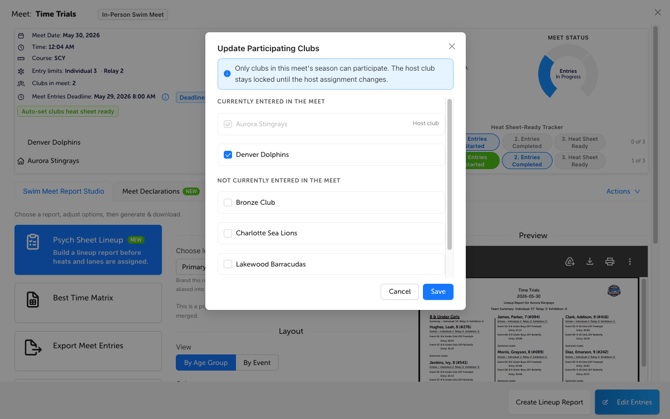
- Save your changes.
Notes
- Clubs with entries, lineup confirmation, heat sheet acceptance, or declarations activity will be blocked from removal.
- Changes to participating clubs will also reflect throughout the meet experience and SwimminglyFan where applicable.
At this time, you cannot edit the event order after meet creation. In order to change that, you will need to create a whole new meet with the correct event order.