![S_Icon_03.png]](https://support.swimmingly.app/hs-fs/hubfs/S_Icon_03.png?height=50&name=S_Icon_03.png)
Given That
I am a Club Admin
I Want To
Create an upcoming swim meet
Solution
Log into your Swimmingly® Clubhouse account, and navigate to the Meet Schedule tab to create your swim meet
Step 1: Log into your Club Admin account in the Swimmingly® Clubhouse
Click on the Meet Schedule tab
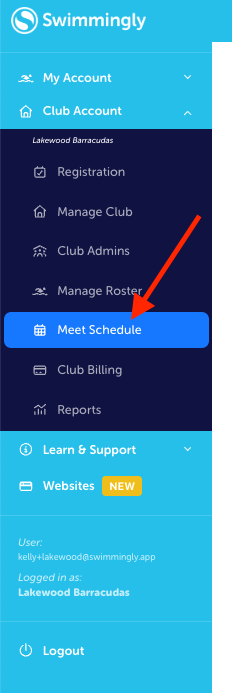
Step 2: Select "Add Swim Meet"
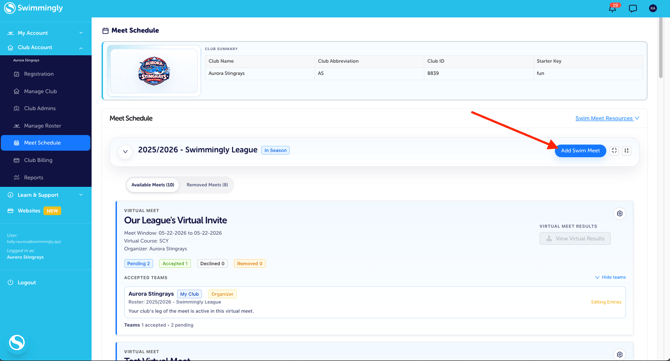
Step 3: Fill out your meet details
This includes the meet name, event order, meet type, participating clubs, meet location, meet date, meet entries deadline, and entry limits.
If this is your first time creating a meet, you'll want to make sure you create your event order first.
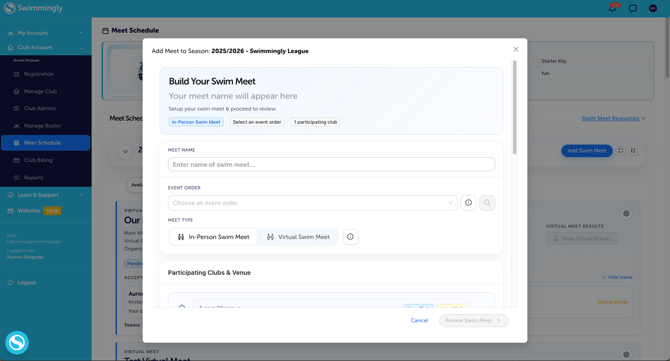
Meet Name:
Create the name of the meet that will appear on the Heat Sheet and Meet Results
(ex: Lakewood Barracudas @ Denver Dolphins)
Event Order: Select from any Event Orders your Club or League has previously created
Meet type:
-
Traditional Meet - The swim meet will be held in-person
-
Virtual Meet - Each team will hold their own swim meet with their own team at their own pools. Results will be combined between each location.
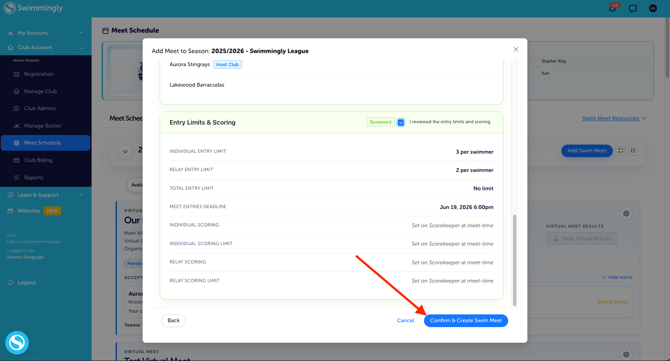
Step 4: Review and Confirm Your Details
Note: If you have added any other teams into the swim meet, the swim meet will be created on their Meet Schedule in the Clubhouse as well!
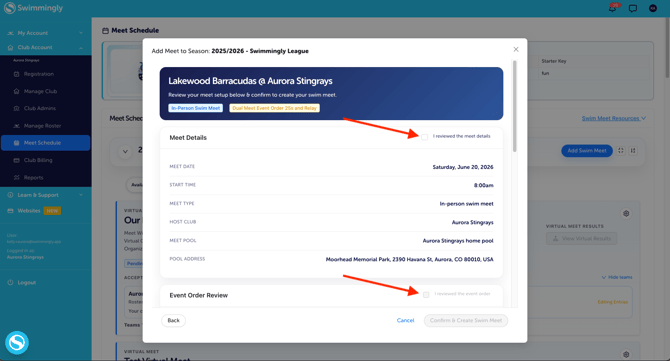
Step 5: Select "Confirm and Create Swim Meet"
NOTE: All meet details are editable after the meet is created EXCEPT for changing the event order.