![S_Icon_03.png]](https://support.swimmingly.app/hs-fs/hubfs/S_Icon_03.png?height=50&name=S_Icon_03.png)
Given That
I am a club admin
I Want To
Customize additional store items to generate more revenue for my club
Solution
In Premium Club Registration setup, click on Step 3 and navigate to the 'Store Items' to customize additional items like team shirts, towels, and more!
After opting-into Premium Club Registration and connecting your club's bank account, do this:
Go to Step 3: Select 'Store Items':
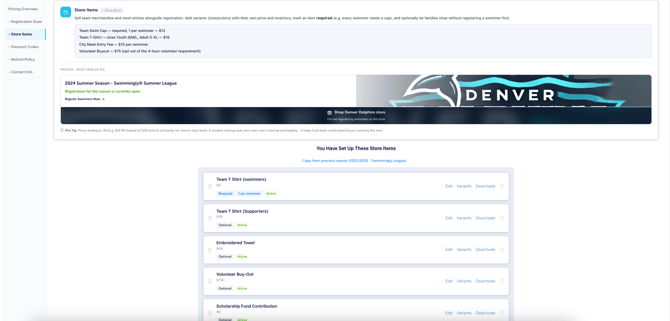
Click 'Add New Store Item'
Select Add New Store Item and complete the item details:
- Item name: Enter a name families will recognize, such as “Team T-Shirt” or “Scholarship Fund Contribution.”
- Default price ($): Enter the price per item. Set the price to $0 for items included in your club dues that still require a selection, such as a shirt size.
- Description: Explain what families are purchasing or selecting.
- Refund policy override for this item: If needed, enter a refund policy specific to this item.
- Eligible swimmer age range: Set a minimum and maximum age if the item is intended for certain swimmers.
- Redemption limit per swimmer: Set a limit and select the applicable scope, or leave it unlimited.
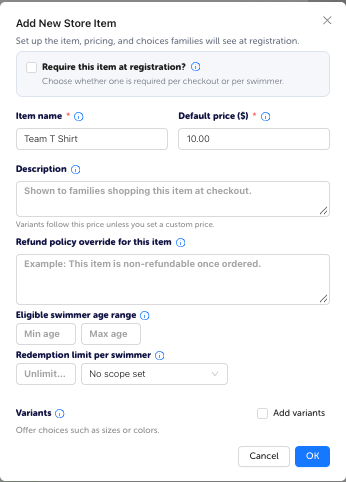
Choose whether the item is required
Turn on Require this item at registration? if families must include the item with their registration.
Choose whether the requirement applies once per checkout or once per swimmer.
Examples:
- Once per checkout: Require one item for the family.
- Once per swimmer: Require a team cap or shirt for each swimmer being registered.
Leave this option off for optional purchases or contributions.
3. Add sizes, colors, or other variants
For items with multiple options, select Add variants.
Variants let you offer sizes or colors within one store item. You no longer need to create a separate item for every shirt size.
Example: Create one “Team T-Shirt” item with Youth Small, Youth Medium, Adult Small, and Adult Medium variants.
Use the variant settings to customize pricing and available inventory for each option. Track available quantities to manage items that sell out.
You can also manage variants later by selecting Variants beside the item.
Save and organize your items
Select OK to add the item to your store.
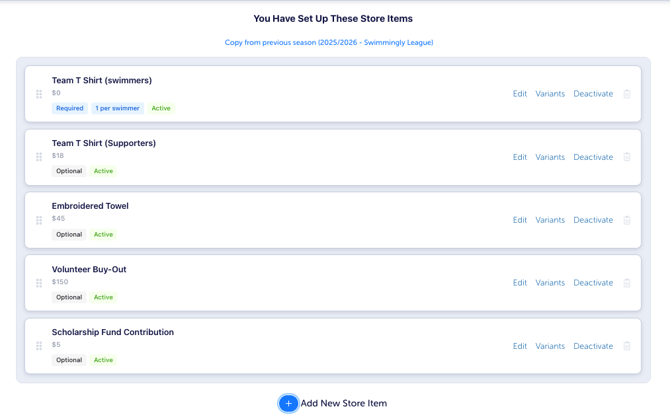
From the store item list, you can:
- Select Edit to update an item’s details.
- Select Variants to manage its options.
- Drag items using the dots on the left to change their order.
- Select Deactivate to hide an item when it sells out or is no longer offered.
- Select Activate to make an inactive item available again.
- Use the trash icon, to delete an item.
Copy from previous season to reuse your previous store setup. Review the items, prices, variants, and availability to update for the new season.
"Does Swimmingly have any recommendations for generating revenue for the club?"
Some teams have infrequent expenses (new lane ropes, flags etc). Some clubs choose to create an additional store item for those initiatives, or, simply create a "Suggested Contribution" item for families that would like to help contribute. Please consult your tax professional regarding deductible donation implications if families choose to make a donation.
"Our club has a scholarship fund, can we add that as an additional checkout item?"
Of course - please consult your tax professional regarding deductible donation implications if families choose to make a donation.
Next, if you'd like, you can Setup Discount Codes for your Club Registration.