![S_Icon_03.png]](https://support.swimmingly.app/hs-fs/hubfs/S_Icon_03.png?height=50&name=S_Icon_03.png)
Given That
I am a club admin, setting up Premium Club Registration
I Want To
Connect my bank account and successfully complete Step 1
Solution
When you click 'Add Information' you'll be asked to fill out your information through Stripe right from the Clubhouse. After completing the required steps, you'll see your bank account has been connected and verified.
Step 1: Login/Create Stripe Account & Complete Setup
If your using Swimmingly®'s Premium Club Registration product, this is the first step you'll see:

Click 'Add Information' & either login to an existing Stripe account or create a new account by typing in your email address. Screenshots of what you'll see are shown below:
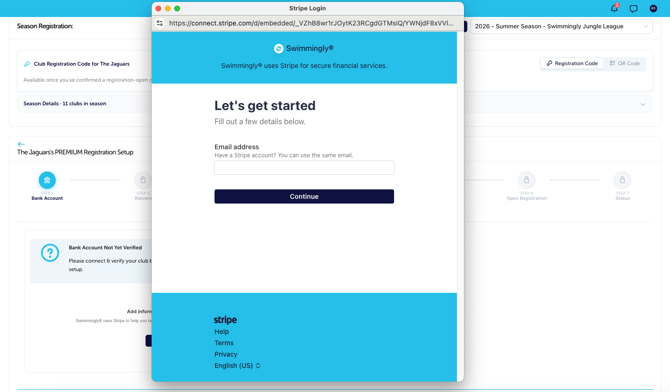
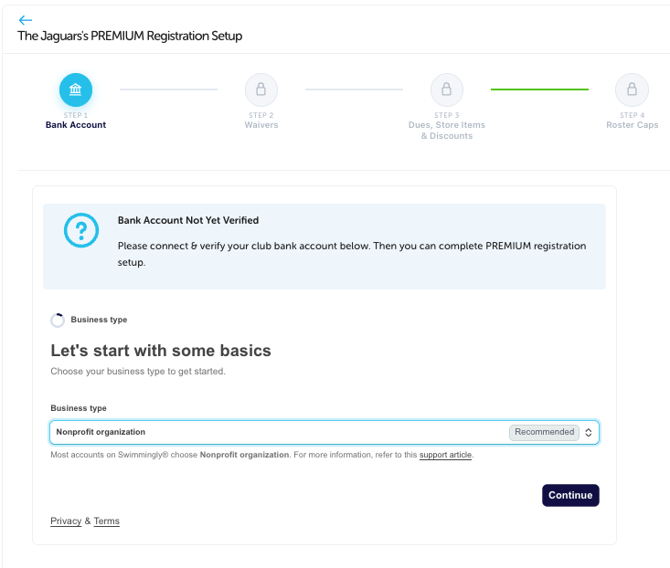
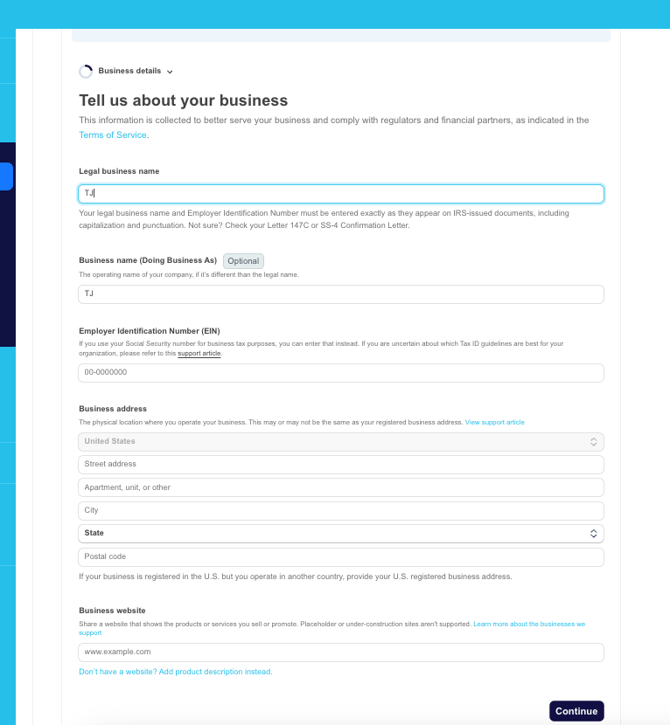
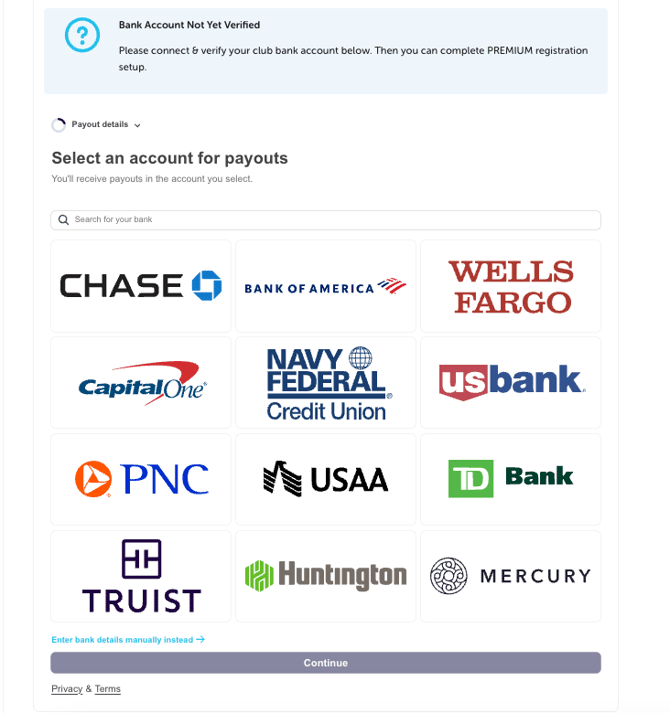
Whether your club is non-profit, for-profit, or any varying organization structure, you will be able to put in the appropriate info on Stripe. This process takes ~5 minutes and you should have your club's applicable bank account/business/non-profit info handy (bank & routing accounts, EIN, etc) to complete this step.
Once you save your info, it may take up to 24 hours to verify your information. However, on average this step takes only a few minutes to verify your account. Once successfully verified, you'll see this on Step 1:
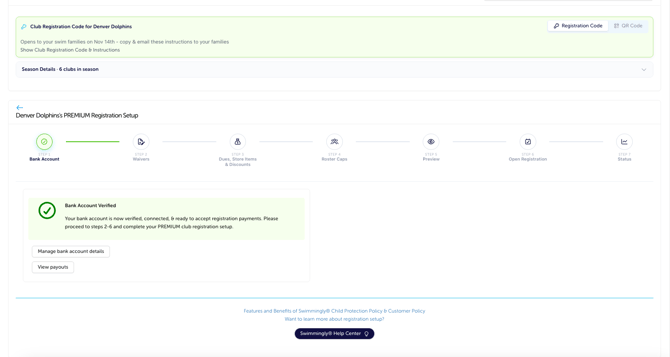
If you do NOT see that your bank account has been successfully verified, you may have missed something in Stripe. Simply click 'Add Information' AGAIN, input any information you may have missed the first time.
Once you've verified your bank account in Step 1, you can begin customizing your club's waivers, disclosures, and membership info in Step 2